Audio
How to test your microphone online
Before a call, a stream or a recording you want to know that your microphone works and sounds right. You will allow access, check the level, record a sample and fix common problems. The sound stays in your browser; nothing is uploaded.
Plug in the microphone or headset first. Close other apps that use it, such as call apps.
Open Mic testContents
Know what a good level is
Levels are in dBFS: 0 is the loudest a recording can hold. Speech peaks between −20 and −6 dBFS are good; near 0 the sound clips and distorts, below −20 it is too quiet.
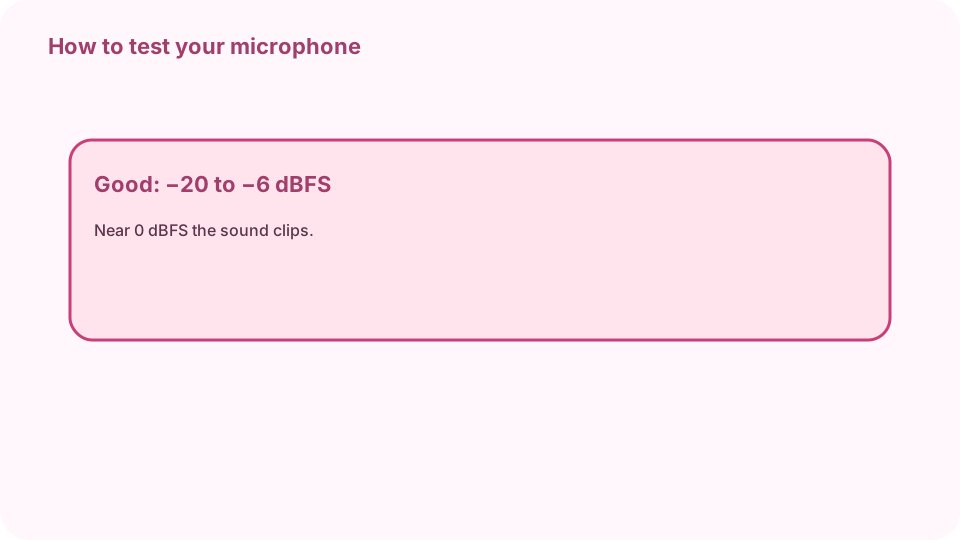
−20 to −6 dBFS good · near 0 clips · below −20 quiet. Open Mic test on cv.cm
Press Start microphone. The browser asks for permission; allow it.
Open Mic testWatch the meter
Speak or clap. The meter, Level, Peak and the waveform should move. The line under the meter says whether the level is good, quiet or too loud.
Pick the right device
Once access is allowed, Input device lists your microphones by name. Pick another one if the meter does not move.
Record and play back
Press Record 5 s and speak normally. When it stops, a player appears: listen for echo, hum or a muffled sound.
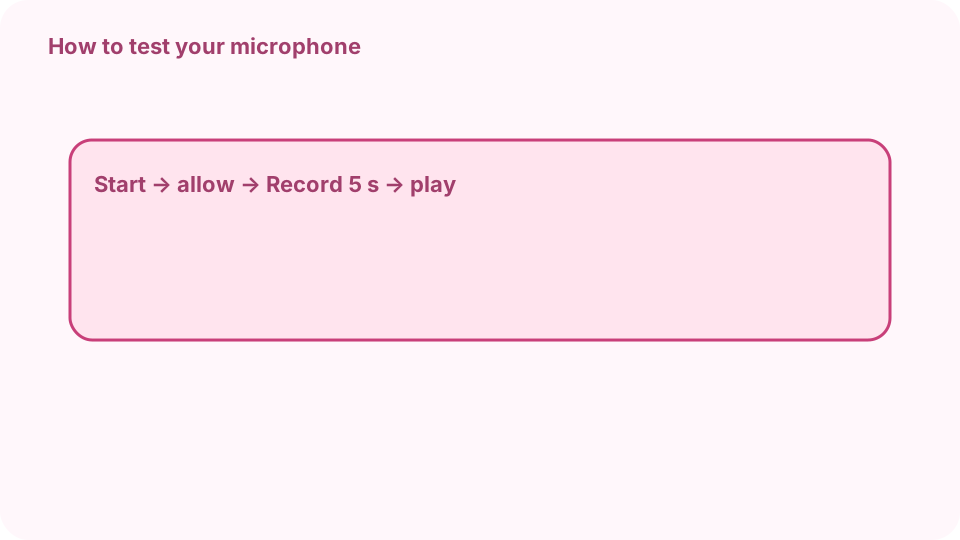
Start → allow → speak → Record 5 s → play. Fix common problems
No movement: check mute switches and the system input volume, and that no other app holds the mic. Too loud: move back or lower the input gain. Blocked: allow the microphone in the site settings.
FAQ
How can I test my mic online?
Open Mic test, press Start microphone, allow access and speak; the meter should move. Record 5 seconds to hear yourself.
Why does my mic show no sound?
It may be muted, the wrong device may be picked, or another app may be using it.
Is my recording uploaded?
No. It stays in the tab and is gone when you close it.
What does dBFS mean?
Decibels relative to full scale: 0 is the loudest digital level, so speech levels are negative numbers.
How do I allow a blocked microphone?
Click the site icon next to the address bar, set Microphone to Allow and reload the page.