Developer tools
How to record your screen online
You want to record a tutorial, a bug, a presentation or a video call without installing software. You will pick the format and sound, choose what to share, record and download the video. It runs in your browser on a computer.
Close private tabs and turn off notifications before you share the entire screen: everything visible is recorded. Phones and tablets cannot record the screen from a web page.
Open Screen recorderContents
Open the Screen recorder on cv.cm
Use Chrome, Edge, Firefox or Safari on a computer. Close windows you do not want in the video.
Open Screen recorderChoose the format and quality
Leave Format on Auto (MP4 if possible) for the file that plays most widely. Quality Standard (4 Mbps) suits most screens; High (8 Mbps) keeps fast motion and small text sharper.
Choose the sound
Tick System or tab audio to record the sound of what you share, and Microphone to add your voice. Sharing a browser tab is the most reliable way to get its sound.
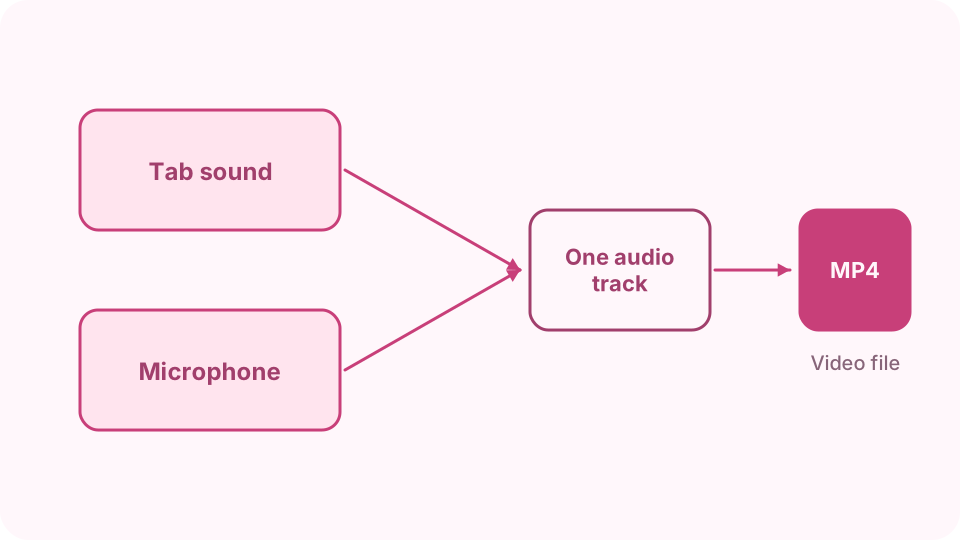
Tab or system sound and the microphone are mixed into one audio track. Start and share
Press Start recording. The browser asks what to share: Entire screen, Window or a Tab. For a tab's sound, keep its audio option on, then press Share.
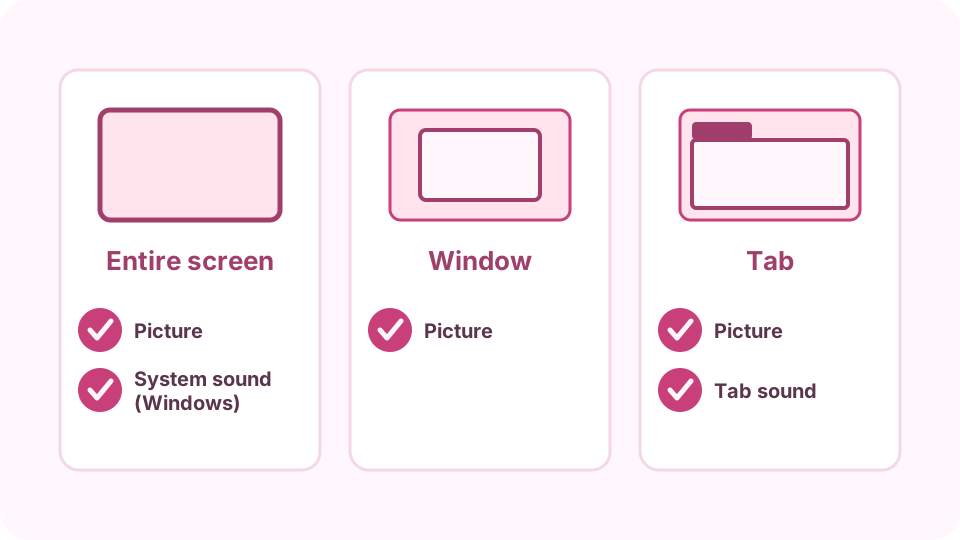
What each sharing choice records, and where tab sound comes from. Record and stop
The timer runs while you record. Press Pause and Resume to skip parts. Press Stop recording, or the browser's Stop sharing bar, when you are done.
Check and download
Play the video under the timer, then press Download MP4 or Download WEBM. Press Discard to throw it away and record again.
FAQ
Why is there no sound in my screen recording?
Tick System or tab audio before starting, then share a tab and keep its audio option on. Sound of the entire screen is recorded only in Chrome and Edge on Windows and ChromeOS, and Firefox and Safari record no shared sound; add Microphone for your voice.
Can I record a video call?
Yes. Share the call's tab or window, tick Microphone for your voice and System or tab audio for the others. Tell the people in the call that you are recording.
How long can a recording be?
Up to 60 minutes each. At High quality an hour is about 3.6 GB, so make sure you have space.
Will the video have a watermark?
No. The file is exactly what was recorded.
Is the video uploaded?
No. It is recorded in the tab and saved only when you press Download.